A learner-first guide to eight practical digital skills for adults, including device basics, safer accounts, search, email, online forms, and troubleshooting.
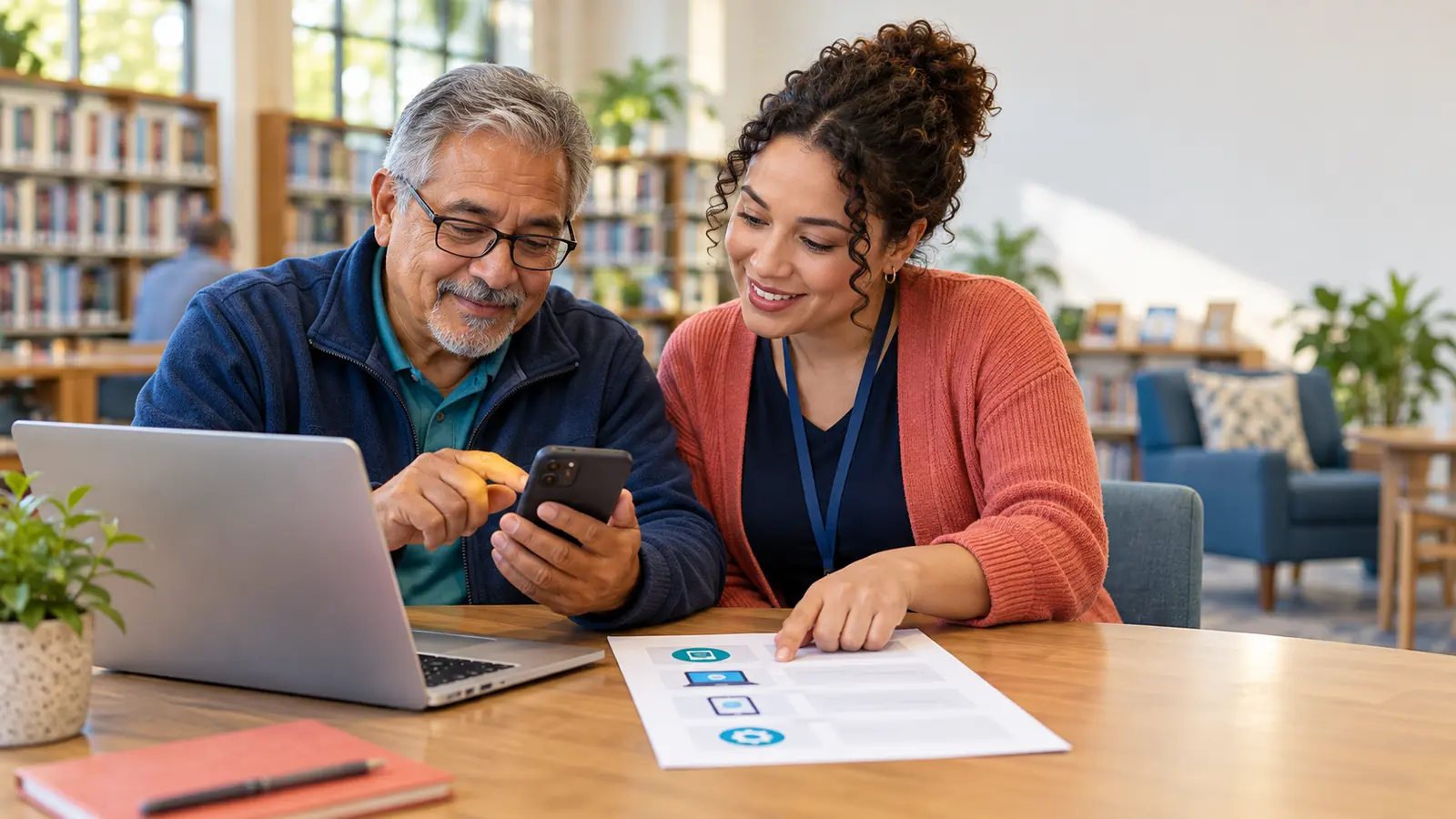
Digital literacy for adults is the ability to use devices, websites, communication tools, and online information with growing confidence, safety, and independence. It is not a test of intelligence, and it is not limited to knowing which button to press. Useful digital literacy includes understanding what is happening, making informed choices, recovering from mistakes, and knowing when to ask for help.
The U.S. Department of Education’s Digital Literacy Framework for Adult Learners supports structured, task-based learning. The strongest starting point is a real goal: sending a document, joining a video appointment, applying for a benefit, checking a bus schedule, or protecting an account.
Learn the physical controls, charging port, volume, power, camera, microphone, and connection indicators on the device you actually use. Practice tapping, scrolling, typing, deleting, switching apps, opening a new browser tab, and returning to the home screen. On a computer, add mouse or trackpad practice and the basic keyboard shortcuts that make sense for the learner.
Adjust the experience instead of struggling with default settings. Increase text size, zoom a page, turn on captions, change contrast, use voice input, slow pointer speed, or enable a screen reader. Write down the exact steps for one device because menus differ across phones, tablets, and computers.
Learn the difference between Wi-Fi and mobile data, what an internet connection icon looks like, and how to tell whether a device is online. Practice joining a trusted network without sharing its password publicly. Discuss why public Wi-Fi may not be the right place for sensitive transactions.
Know what uses data and storage. Streaming video, downloading large files, cloud backups, and app updates may affect a data plan or available space. A learner does not need to memorize technical terms; they need a reliable way to check connection, battery, storage, and permissions when something is not working.
Create a different strong password for important accounts and store it in a reputable password manager or another secure method the learner can use consistently. Turn on multifactor authentication when available. Keep recovery email addresses and phone numbers current, and protect recovery codes.
The Cybersecurity and Infrastructure Security Agency’s Secure Our World guidance emphasizes strong passwords, multifactor authentication, software updates, and recognizing phishing. Practice the recovery process before an urgent need, but never ask a learner to reveal a password, one-time code, or security answer during instruction.
Before clicking, identify the browser’s address bar, the site name, the domain, and the back button. Explain that search results, ads, and the browser address bar are different things. Practice opening a known government or nonprofit site by typing its address, then finding the navigation menu, headings, contact information, and accessibility controls.
Teach the learner to pause when a web address looks misspelled, unusually long, or unrelated to the organization it claims to represent. The lock icon and HTTPS protect the connection, but they do not prove that a site is honest. Bookmark frequently used official pages so the learner does not have to search for them each time.
Turn a broad need into a specific search: include the service, location, and official organization when appropriate. Compare the result title, source, date, and purpose before opening it. On the page, look for who created the information, how it is supported, when it was updated, and whether it is trying to sell or persuade.
Separate a confident tone from reliable evidence. For health information, use UWP’s seven-question source check. For any topic, open the primary source when a post or summary makes a claim. Save the useful page rather than a screenshot that may lose its date and context.
Practice composing, replying, forwarding, attaching, downloading, and finding a saved file. Before sending, check the recipient, subject, attachment, and whether everyone needs to receive the message. Explain reply versus reply all with a real but low-risk example.
Treat unexpected links, attachments, urgent payment requests, and requests for passwords or codes as warning signs. The Federal Trade Commission’s phishing guidance recommends verifying through a phone number or website known to be genuine rather than using contact information in the suspicious message. If a mistake happens, stop, disconnect when appropriate, change affected credentials from a trusted device, and seek qualified help.
Before entering information, confirm the organization, purpose, deadline, and fields that are actually required. Read consent language and privacy notices in manageable sections. Avoid entering sensitive information on a shared device unless the process and sign-out steps are understood.
Practice saving progress, uploading a file, reviewing answers, submitting, and preserving the confirmation. Know the difference between closing a window and signing out. If the form is inaccessible, confusing, or unavailable in a needed language, look for an official phone, in-person, mail, or accommodation route rather than asking the learner to guess.
Use a repeatable sequence: read the full message, check power and connection, confirm the correct account, close and reopen the app, look for an update, and restart the device. Change one thing at a time so the learner can tell what worked. Write down the fix in the learner’s own words.
A helper should ask permission before touching the device and explain each action. Let the learner control the mouse, phone, and keyboard whenever possible. Do not browse private photos, messages, files, or accounts that are unrelated to the task. Independence grows through guided practice, not through watching someone else complete the work.
Use short sessions, one goal at a time, and a low-risk practice account or sample form. Repeat the same task on different days. A written step card should use plain language, large readable text, and screenshots only when they match the learner’s device.
Explore UWP’s Accessible Wellness Education, plain-language checklist, Resources hub, and ways to volunteer or get involved.
It is the ability to use digital devices, communicate, find and evaluate information, protect accounts, complete tasks, solve common problems, and seek help while making informed choices.
Start with device controls, typing or tapping, Wi-Fi, browser navigation, search, email, files, account safety, online forms, and a simple troubleshooting routine.
Choose one real task, break it into steps, practice on the same device, repeat it over time, and use a trusted helper who explains actions without taking control.
Public libraries, adult-education programs, workforce centers, senior centers, and community organizations may offer classes or one-to-one help. Confirm current schedules directly with the provider.
Ask about goals and prior experience, adjust accessibility settings, use plain language, practice one task at a time, respect privacy, and let the learner operate the device.
Use unique strong passwords, turn on multifactor authentication, install updates, verify unexpected messages through a known contact route, and pause before sharing personal information.
Yes. Digital literacy includes checking the source, date, evidence, purpose, and original context before trusting or sharing a claim.